01Section one

The reader.

This is the part you actually spend your evenings with: the type, the themes, the way you move through a book, and the small touches you only notice once they’re gone.

Forty-one themes, organized in palette families

CR JR

Themes are more than color schemes. Each defines background, text color, progress bar tint, and bookmark marker palette. The Featured ones go further — they bring their own typeface, signature frames, and custom progress indicators built into the theme’s identity, not just a color tweak.

  • Palettes Five families — Neutral, Ochre, Celestial, Lime, Rose — each with seven tonal variations: a pure-white extreme on the left, five mid tones in between, and a pure-black extreme on the right. The extremes carry the palette’s signature color in saturated text on plain white or black — built for full sun on a beach or pitch-dark bedrooms.
  • Featured Typewriter (ivory + dark brown, light and dark variants, locked to American Typewriter — leans into a quiet steampunk vibe with a brass dashboard speedometer whose needle rolls as you read, swapped for a vintage radio-dial carriage with a lit red pointer on narrower screens; copper-rim keycaps; mechanical drum-counter read-outs) and Terminal (white monospace on deep blue, locked to Menlo / Courier New, Norton Commander homage). Both come with their own independent typography and layout settings.
  • CustomThree user-defined slots with full color picker control
  • Day & Night mode Assign separate themes for light and dark system appearance — automatic or manually overridden

The reader carries three independent appearance contexts — Regular, Typewriter, and Terminal. Each remembers its own font, size, line height, padding, alignment, and navigation mode, so a tweak made inside Terminal won’t follow you back to Ochre.
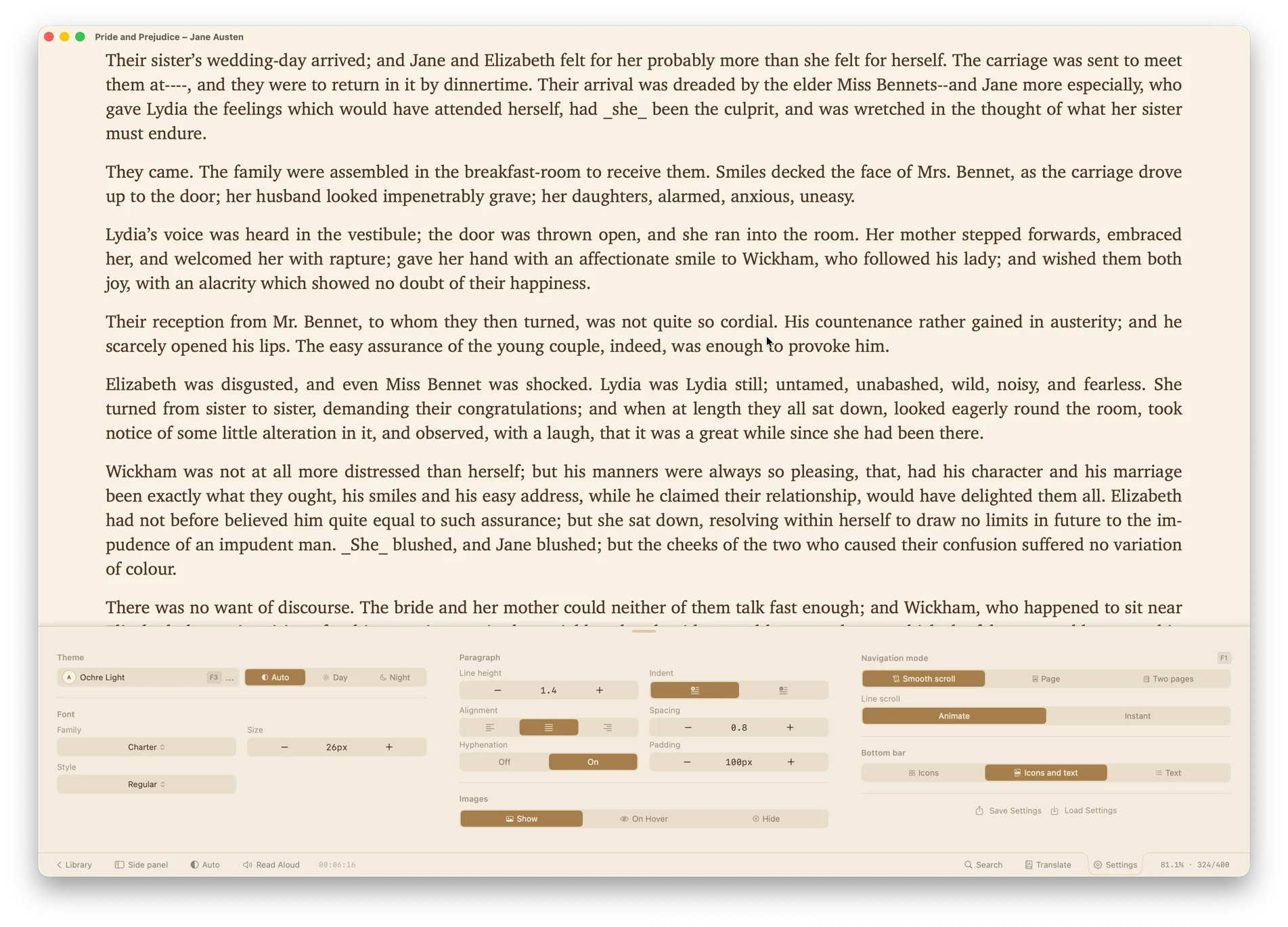
Theme picker dropdown with palette family and tone swatches

Nine typefaces, three groups

CR JR

All system fonts — no downloads, no licensing, no rendering differences between devices.

  • SerifGeorgia, Palatino, Charter, Iowan Old Style
  • Sans-serifHelvetica Neue, SF Pro, Avenir Next
  • MonospaceMenlo on Mac, Courier New on iOS; American Typewriter everywhere

The font picker groups them with labeled sections and applies your choice to the page instantly. Where the typeface supports them, you also get weights — thin, regular, and bold.

Full typography control

CR JR
  • Size12 to 48 pixels
  • Line heightContinuously adjustable, from tight to spacious
  • Paragraph spacingContinuously adjustable from 0.3 to 2.4 em
  • Text indentToggle first-line indentation
  • AlignmentLeft, justified, or right
  • HyphenationAutomatic when justified, with content-based language detection for Latin, Cyrillic, CJK, Arabic, and Greek scripts
  • Page paddingContinuous slider from edge-to-edge to generous margins
  • Image displayShow, mask (reveal on hover), or hide entirely

Every setting applies instantly — no page reload, no position lost.

Continuous scroll, page, or two-page spread

CR JR

The default reader renders the book as a single continuous page — no artificial breaks, just smooth vertical scrolling.

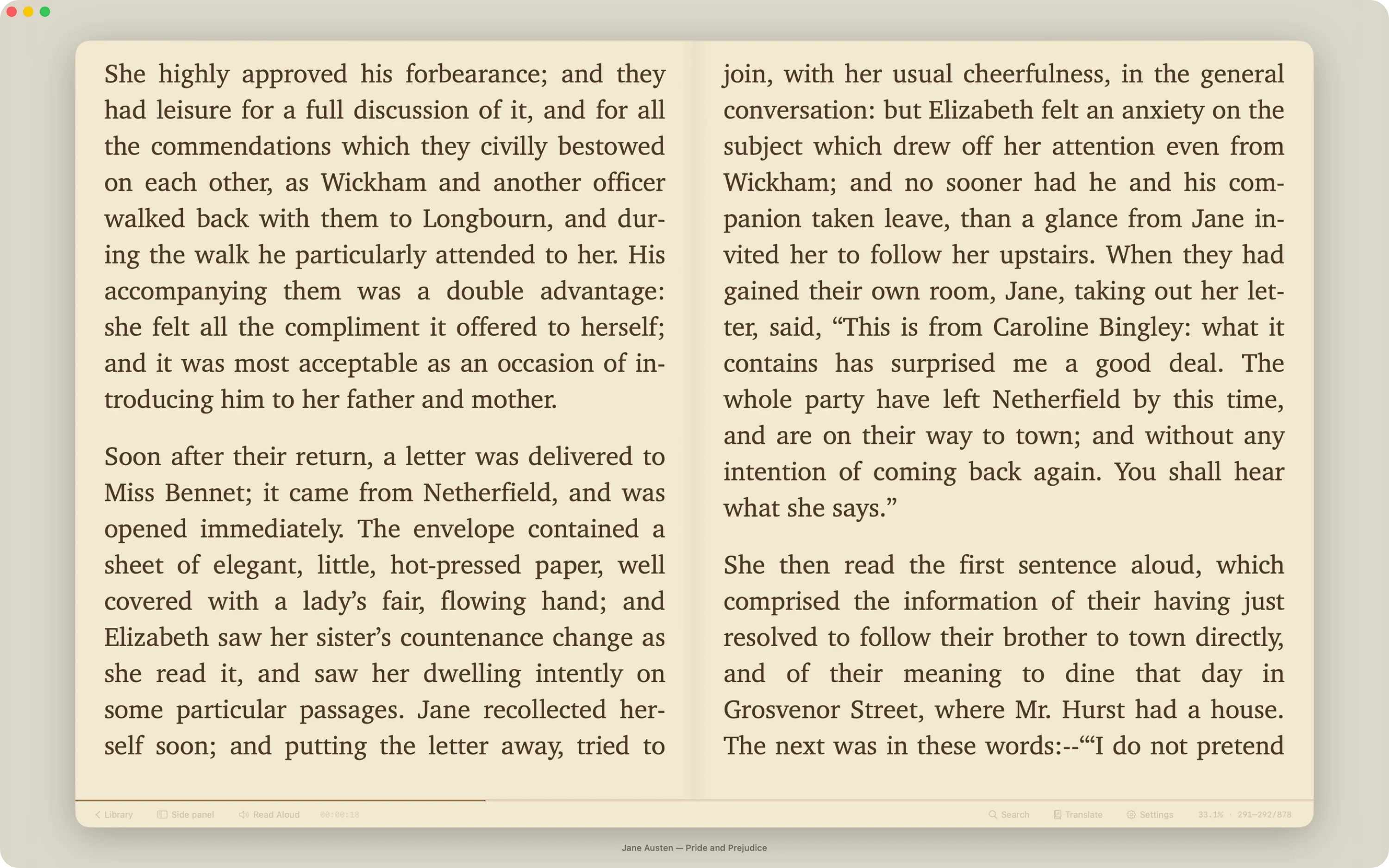
Switch to Page mode for a paginated experience with animated or instant page turns. Page separators are configurable — clean lines or a soft shadow. On Mac and iPad (in landscape), Two pages mode renders a classic book spread. All three modes preserve your exact position when switching.
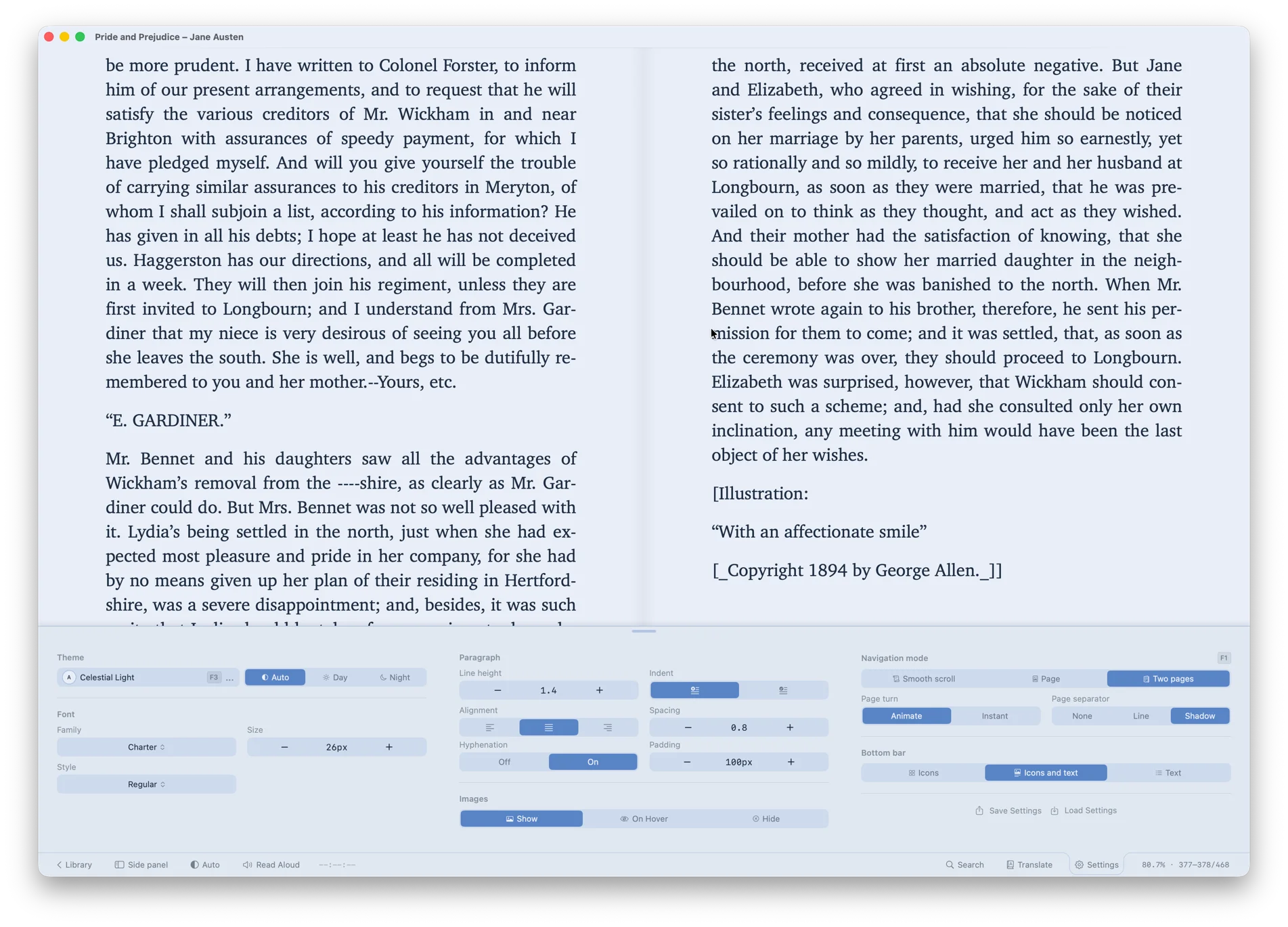
Two-page spread on Mac with progress bar and chapter map

Position that survives anything

CR JR

Your reading position is tracked more precisely than most readers bother with — which means it survives:

  • Font changesSize, family, line height
  • Window resizesFull layout reflow
  • Device switchesMac to iPad, iPad to iPhone — ContinuousReader with sync enabled
  • Mode switchesScroll to page, page to spread
  • Long absencesReopening the book weeks later with different settings

When you return to a book, the reader fades in at the exact paragraph you left, not the nearest chapter.

One caveat: settings that change how many pages a book has — font size, line height, paragraph spacing, two-page spread — can nudge the exact spot by a line or two. The reader anchors to the first paragraph visible on screen, so you keep your place even when the page count shifts under it.

Progress drawer and markers

CR JR

A slim progress bar along the bottom expands on hover (Mac) or tap (iOS) to reveal reading position. Click or double-tap to open the progress drawer:

  • Tapered sliderA custom track that’s thick for the part you’ve read and hair-thin for what’s ahead, with a smooth S-curve at your current position
  • Entry markerA dot with a dashed ring showing where you started this session
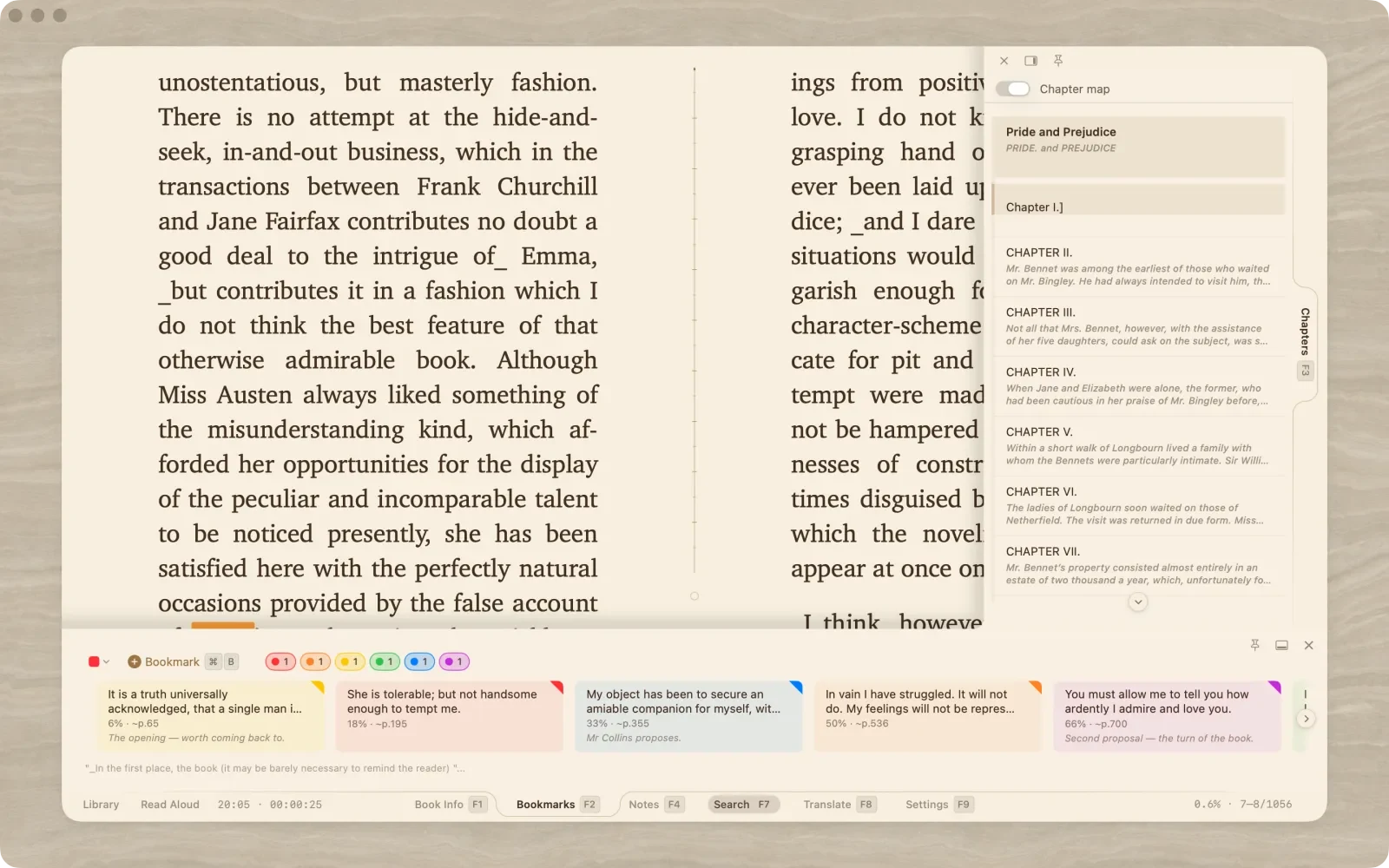
  • Marker modesSwitch the track to show chapters, images, bookmarks, or nothing. Chapter markers show titles on hover. Image markers show thumbnail previews.
  • Go ToDirect jump to a page or percent — just enter the value

In ContinuousReader, bookmark markers are color-coded and show preview text and page number on hover.
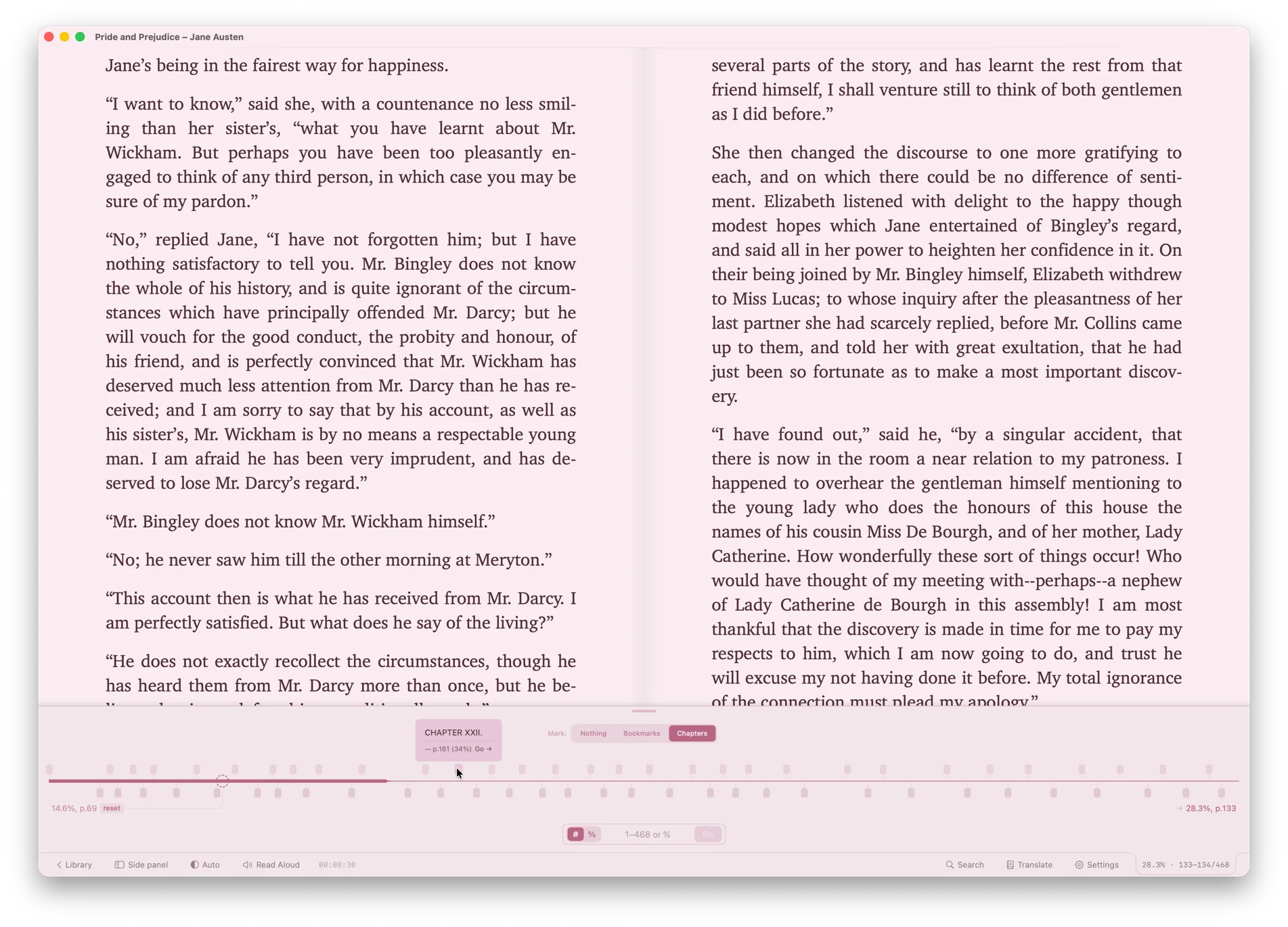
Progress drawer with tapered slider, markers, and Go To input

Chapter navigation

CR JR

Chapter structure is extracted on import — with proper heading priority and scene-break separator filtering (* * *, ---, etc.).

The Chapters tab in the side panel lets you jump to any chapter with one click. On Mac, you can switch between two display modes:

  • Chapter listA static list with the current chapter highlighted and bolded
  • Chapter map Proportional variable-height rows — taller rows for longer chapters — with a thin left rail track, a sliding thumb, and a viewport-proportional indicator. Page numbers are hidden in map mode for a cleaner spatial view.

If you’ve used the minimap in a code editor, you’ll recognize the shape.

Bookmarks

CR

Add a bookmark with Cmd+B or via the text selection context menu. The app captures your selected text as a preview, or — if nothing is selected — the first visible paragraph.

  • Seven colorsTo categorize bookmarks (last-used color is remembered)
  • NotesAttached to any bookmark
  • Filter bookmarks by colorAppears when a book has two or more bookmark colors
  • Highlights in the textEach bookmark tints its passage in the book — as if marked with a highlighter, in its own color
  • Live markersOn the progress bar, with tooltip previews
  • Nearest bookmarkHighlighted in bold in the side panel as you read

Bookmarks are available only in ContinuousReader.

Notes

CR

Each book has a personal notes field with a rich text editor. The formatting toolbar supports bold, italic, underline, strikethrough, H1–H3 headings, bullet and numbered lists, blockquotes, horizontal rules, and four highlight colors (yellow, green, blue, pink). On iPhone, the toolbar splits into two rows to fit everything without scrolling.

Notes are stored with full formatting and rendered the same way in the side panel and in exported reports.

Fullscreen (iOS)

CR JR

Tap the center of the reading area to hide the bottom bar and enter fullscreen. In scroll mode, only the physical edges of the device remain — text flows under the Dynamic Island or camera housing. In paged mode, the safe area is respected so each page reads as a clean rectangle. Tap the center again to exit.

In fullscreen, quick settings are reachable without leaving — a left bottom tap zone on iPhone, a tap-the-clock menu on iPad. Adjust theme, font, size, brightness without losing the page.

Precise navigation is available too — both a full marker-rich panel (chapters, images, bookmarks) and a quick drag-and-search sheet. Both work in fullscreen on iPhone and iPad. The mode auto-exits only when you open the side panel; translation stays in fullscreen via a floating panel.

Optional pixel-art clock shows the time as dotted numerals on the background of the page — adjustable position and contrast, visible enough to check at a glance, unobtrusive enough to ignore while reading. For anyone who’s ever lost track of time in a book and missed their stop.

Or a small island indicator floating at the bottom — clock and reading progress over a darker pill background.

Or a thin bottom bar version — clock and progress across the full width of the screen.
02Section two

Translation and Read Aloud.

Two ways to meet a book halfway when reading it straight isn’t enough — look a word up, or let it read to you. Both ride the reader’s position tracking, so moving between them never costs you your place.

Translation — inline, non-disruptive

CR JR

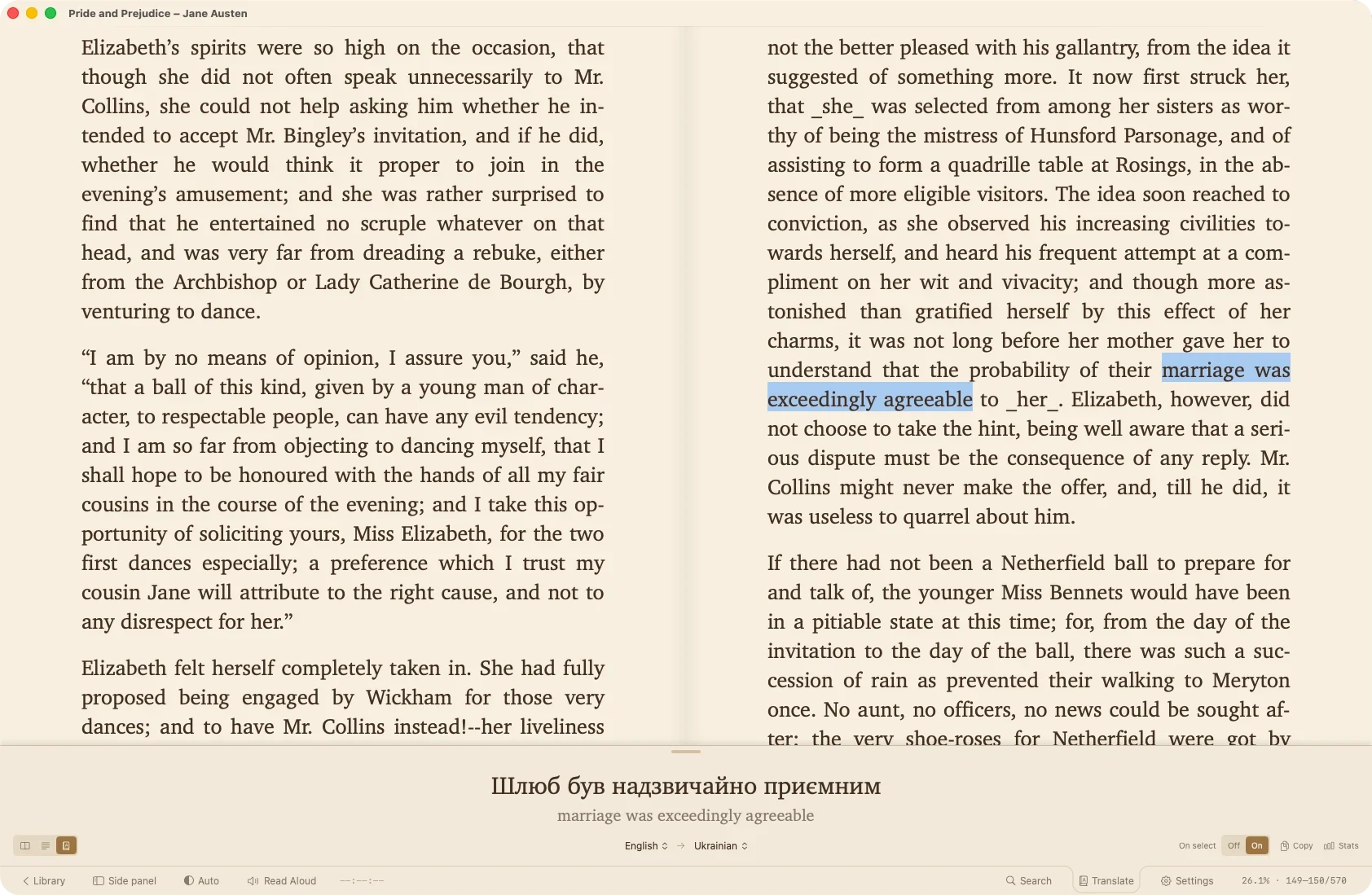
Highlight any word or phrase. Its translation appears in a panel along the bottom of the screen and stays out of the way while you read on. It never covers the text or pulls you out of the page — no popup, nothing to dismiss.

Three display modes in the panel:

  • Translation onlyJust the translated text, maximally compact
  • Side by sideSource and translation next to each other
  • InterlinearThe translation directly under the original — each word under its source

Switch modes in the toolbar, or set your preferred default in settings.

  • Many target languagesProvided by Apple’s on-device Translation framework
  • Nothing leaves your deviceAll translation happens locally
  • Selection menu reorderingTranslate and Bookmark sit at the top of the right-click / long-press menu by default. Reorder them in settings — whichever you reach for more often goes first.
Reader with selected word and interlinear translation panel

Translation statistics

CR

Every word you look up can be remembered. ContinuousReader tracks:

  • LanguagesThe languages you translate between, with frequencies
  • Words seen beforeWith counts
  • BooksWhere you translated the most
  • Time-based activityWhen and how often you reach for translation

Tracking can be toggled any time. Turn it off and nothing is recorded. Turn it on and export the full history as an HTML report — useful for language learners, researchers, and translators.

Future: export to Anki or other flash-card formats, if there’s demand.

Read Aloud

CR JR

Built-in text-to-speech that reads from your current position. Not a separate mode — an extension of the same reading session.

  • Position sync on openThe voice reader matches the paragraph you were visually on
  • Position sync on closeThe visual reader scrolls to the paragraph the voice finished
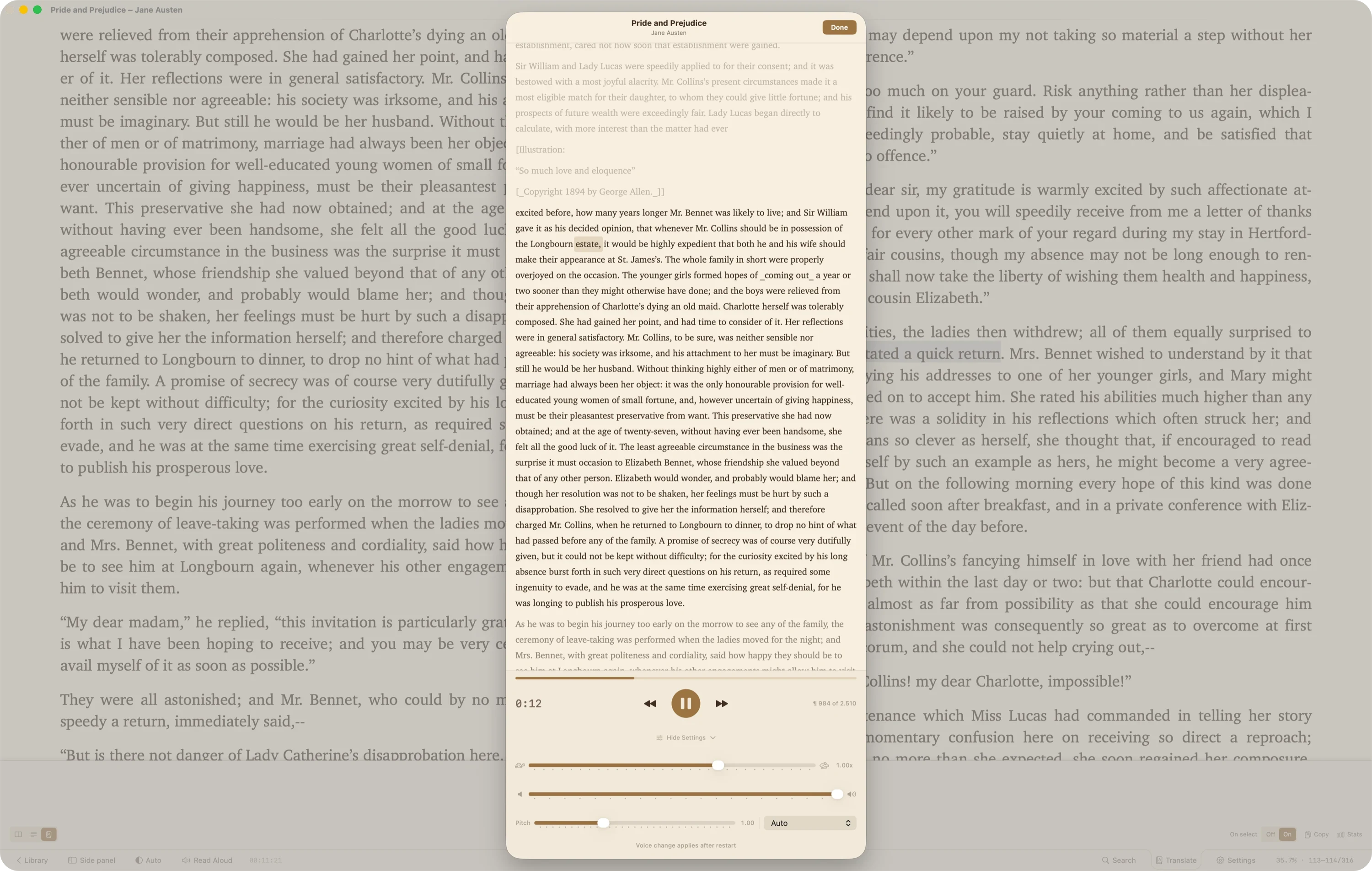
  • Word-by-word highlightingA soft rounded indicator glides from word to word, automatically keeping the current paragraph scrolled into view
  • Transport controlsPlay/pause, skip forward/back, elapsed time, paragraph counter
  • Adjustable speedContinuous slider with real-time effect — change speed mid-sentence and playback picks up from the exact word, not the nearest paragraph
  • Pitch and voiceInline pitch slider, voice picker with Auto language detection or manual selection. Disabled during playback to prevent disruption — pause, adjust, resume.
  • Theme integrationAll controls, progress bar, and word highlight use your current reader theme colors
Read Aloud view with scrolling paragraphs, current word highlighted, transport controls
03Section three

The library.

How ContinuousReader keeps your collection in order and puts it in front of you. The library is where you linger between books, so it stays quick and flexible and otherwise keeps out of your way.

CR ONLY JustReader reads one book at a time and doesn’t support library features. Everything below is ContinuousReader territory.

Three tabs

The library is organized into three tabs, each with its own purpose:

  • LibraryThe complete collection, with all filtering, sorting, and folder scoping applied
  • LatestRecently opened or recently imported books (switchable), ignoring folder filters
  • PinnedYour favorites, also ignoring folder filters

Latest and Pinned work as shortcuts — the books you want fast access to, without fiddling with filters.

View modes

  • List view (iPad and iPhone) Adaptive row layout with five detail levels (full, compact, minimal, essential, mobile). Shows cover, title, author, series, progress, genre chips, and a context menu.
  • Card view Responsive grid with cover images, 4-directional keyboard navigation, cover zoom animation, double-click to open, frosted glass selection checkboxes. On iPhone, switchable 2- or 3-column grid; on Mac and iPad, a 4-tier size picker from Big to Tiny.
  • Table view (Mac only) Sortable columns, column customization, two-level hierarchy, inline color dots in the title column, annotation sheet, and a full-width actions toolbar above the table.

All of them support multi-mode grouping: none, author, series, author & series, genres, or date added — with collapsible sections and shared section headers.

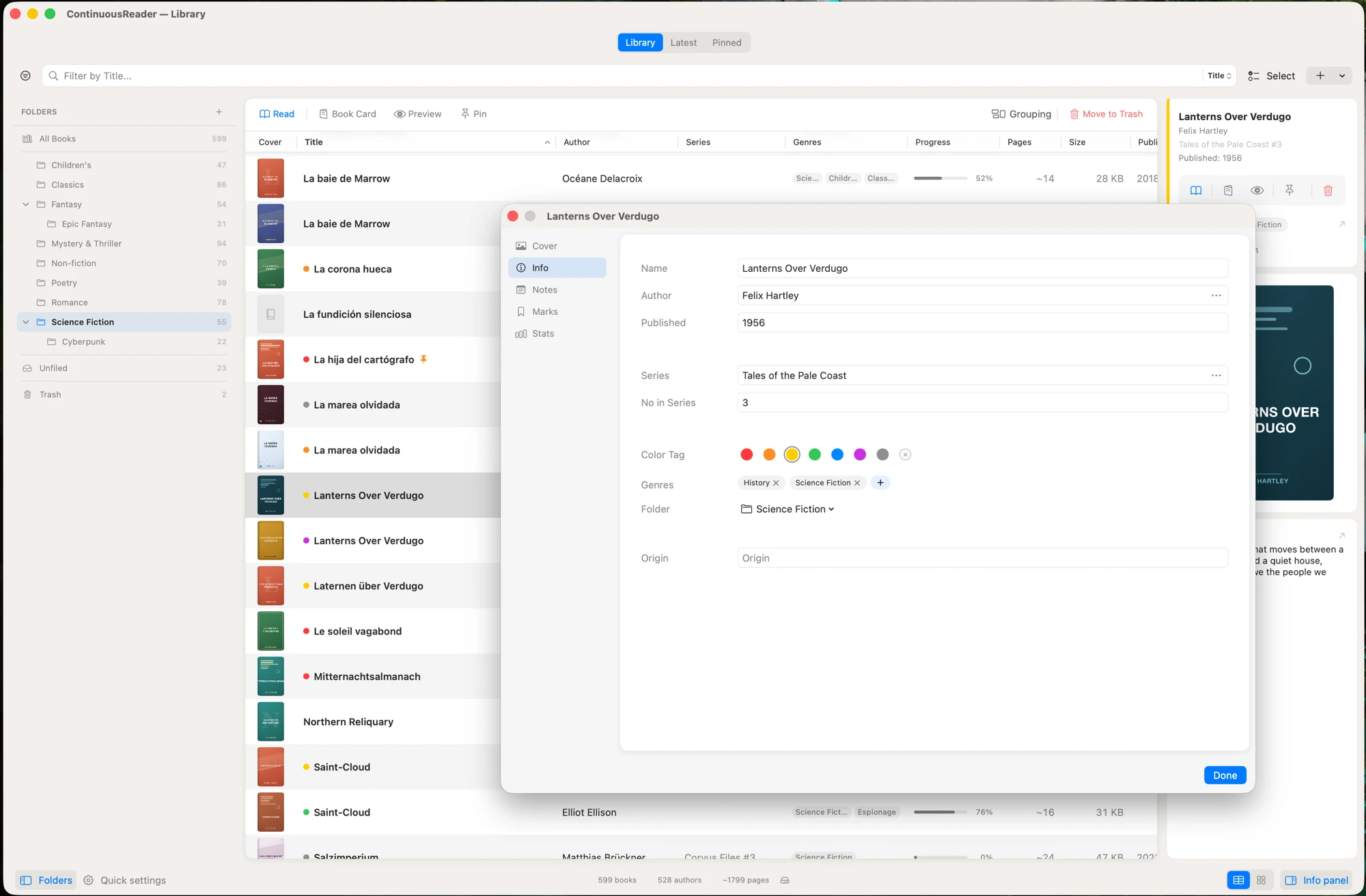
Library table view grouped by genre, with the info panel and a book card open

Color tags

Seven Finder-style colored dots that can be assigned to any book via context menu, edit dialog, import dialog, or info panel. Optional color highlighting shows faint background tints in list and card views, and inline colored dots in table view.

Genres and tags

Genre tags are auto-extracted from FB2 genre codes (around 170 mapped) and EPUB dc:subject metadata. A genre chip picker allows manual editing per book, and a full genre management sheet handles bulk operations across the library.

When a book has more genres than fit on a row, a +N badge shows the remainder, with a hover popover that lists them all.

Virtual folders

User-created folders with full nesting — organize your library into a tree of folders and subfolders, the same on Mac, iPad, and iPhone.

  • Nested sidebar treeOn Mac and iPad — expand and collapse folders, F4 toggles the panel
  • Folder sheet on iPhoneNested list with create, rename, delete, and move between folders
  • Drag and dropDrop books onto a folder to file them; drag a folder onto another to nest it
  • Bulk folder assignmentIn selection mode
  • Keyboard navigationOn Mac — arrow keys move through the tree and expand or collapse folders

Deleting a folder or a book doesn’t erase it — books move to the Trash, where you can restore them, or empty the Trash to delete for good.

Info panel

A resizable detail panel (F2 to toggle) organized in a three-island layout inspired by Apple’s System Settings:

  • Island 1 — Editable metadataTitle, author, series, action toolbar (Read / Book Card / Quick preview / Pin / Delete), color tag, genre chips, folder picker
  • Island 2 — Preview contentAnnotation, notes, and bookmarks with links back to the Book Card
  • Island 3 — Cover imageDisplayed when available

The last visible island stretches to fill remaining vertical space. The panel remembers its width between sessions.

Selection mode and bulk operations

Select multiple books and apply operations to all of them at once: color tag, genre assignment, author / series bulk edit, move to folder, delete.

Available in all view modes on all platforms. Swipe actions and the Read button are disabled during selection mode to prevent accidents.

Quick preview

Press Space in any view to see 2–3 paragraphs from your current reading position in a sheet, with async loading. Skips title-page content. Dismiss with Space or Esc.

Useful when scrolling through the library and wondering "where was I in this one" without opening the book.

Unified Book Card

A tab-based modal that consolidates every piece of data about a book.

  • CoverDisplay, replace, or delete. Drag-and-drop on Mac.
  • InfoAll editable metadata in one place, auto-save after a brief pause
  • NotesRich text editor with formatting toolbar
  • MarksAll bookmarks with color filter, swipe-to-edit on iOS, inline editor on Mac
  • StatsReading progress, pages, opens, dates, file size, translation insights. Exportable as an HTML report.

On Mac, the Book Card opens as a separate window above the main one — move it aside and read alongside.

On iPad, it’s a page-sized sheet.

On iPhone, it’s a fullscreen sheet with native segmented control — swipe down to dismiss.

04Section four

Import.

Getting books in: the formats it reads, the handful of ways to add them, and what you get to decide as each one lands in the library.

Supported formats

CR JR
  • EPUBWith chapter extraction and embedded image handling
  • FB2 / FB2.ZIPWith automatic genre code mapping (~170 codes)
  • MOBIVia a native decompressor
  • HTML / HTML.ZIPWith HTML sanitization and encoding detection
  • TXT / TXT.ZIPWith encoding detection
  • RTF / RTF.ZIPStreaming parser
  • DOC / DOCXWord documents (Mac)

Embedded images are extracted, compressed to JPEG under 500KB at max 1200px, and stored alongside the content. Importing images is your choice, per book — on by default, off if the author overdoes it or you want to save space (the choice is remembered). Once imported, images in the reader can be shown, masked (revealed on hover), or hidden entirely.

Three ways to import

CR JR
  • BrowseNative file picker with filter for all supported extensions
  • URLPaste a download link and the app fetches, validates, and imports the file
  • Drag and dropDrop a file onto the library. Or drag a URL straight from your browser’s address bar — the book is fetched and the import dialog opens with metadata, cover, and author already filled in. You skip the copy-paste-open-import-paste-fetch dance, but you still see the book before it joins the library.

On Mac, the import dialog has a persistent tab switcher (This Mac / URL / Drop) remembered between sessions.

In JustReader, importing replaces the current book. In ContinuousReader, books join the library.

Mass import

CR

Import an existing collection in one pass (macOS). Point ContinuousReader at folders and files and it converts everything at once.

  • Recreate the folder structureThe source directory tree becomes nested virtual folders, merging into folders that already exist
  • Choose the destinationThe current folder, the library root, or any folder — the structure nests under your choice, or books go straight in
  • Skip duplicatesMatched by author and title, so re-importing a collection won’t pile up copies
  • Color tag and imagesApply a color tag and choose whether to keep cover images and inline illustrations
  • Drag and dropDrop a folder or several files onto the library to start it; a single file opens the regular import dialog
  • Summary at the endHow many imported, folders created, duplicates skipped, total size, and any errors

Import dialog

CR

When you import a book into ContinuousReader, you can set its metadata before it enters the library:

  • Duplicate detectionAgainst the existing library, showing where the duplicate already lives
  • Cover previewShown from the book’s own metadata — replaceable later from the Book Card
  • Metadata previewDetected title, author, series, publication date, language
  • Color tagAssignment
  • Genre chip pickerManual genre editing
  • Folder assignmentContext-aware — uses the current folder when browsing one, otherwise none
  • Origin URLStored for later "In Library" detection in OPDS
  • Image inclusion toggleFor FB2/EPUB/MOBI (strip images if you prefer text-only)
  • Open after importCheckbox

JustReader skips this dialog — pick a file, start reading.

File size protection

CR JR
  • 5 MBWarning banner, import proceeds
  • 50 MBLarge-file threshold on Mac (30 / 60 MB on iPhone / iPad) — you can import anyway, or without images
  • 100 MBDecompressed-size threshold for ZIP / EPUB archives (75 / 150 MB on iPhone / iPad)

OPDS browser

CR

Browse online book catalogs with a native interface.

  • Default catalogsStandard Ebooks, Project Gutenberg, Feedbooks — ready to use
  • Custom catalogsAdd your own OPDS server with Basic Auth support
  • Feed navigationWith breadcrumb trail and middle truncation for long paths
  • Server-side searchUsing the catalog’s OpenSearch template when available
  • Local filter At the top of every feed — instantly filters visible items by title, author, or summary as you type
  • Cover thumbnailsWith native caching
  • "In Library" badgeFor books already imported
  • Batch import queue With folder assignment, color tags, and format selection
  • Single import With post-import options
OPDS browser showing Standard Ebooks root with cover thumbnails and filter bar

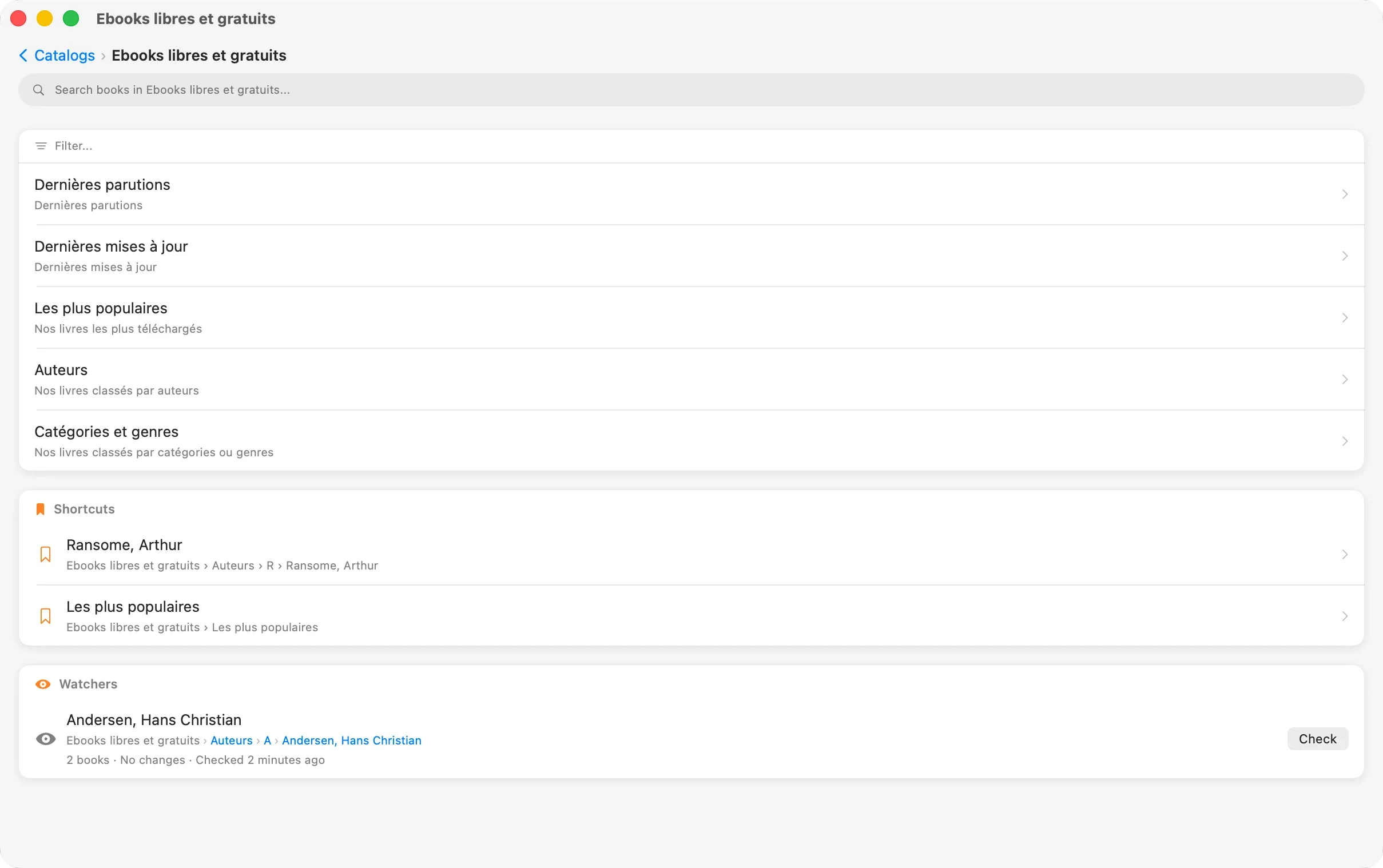
OPDS shortcuts and watchers

CR

Two features that make OPDS browsing more than a one-time lookup.

  • ShortcutsBookmark any feed for one-click navigation. Useful for favorite author pages, series, or collections.
  • WatchersTrack series or author feeds for new entries. Toggle an eye icon on any acquisition feed to start watching. "Check" detects new additions manually. Color-coded status: green when all entries are in your library, orange when new ones appear. Delete a catalog, and all its shortcuts and watchers are cleaned up.
05Section five

Sync and data.

How your library travels between devices, where it sits on disk, and what happens the day you want to move it, back it up, or leave it behind entirely.

CR ONLY Sync, backup, and library management require ContinuousReader. JustReader has no library to sync.

iCloud sync

Included in ContinuousReader, works across every Apple device signed into the same Apple ID — home Mac, work Mac, travel laptop, iPad, iPhone.

  • Reading positionsDown to the exact paragraph
  • BookmarksWith colors, notes, and text highlights
  • NotesThe full rich-text content per book
  • Library metadataTitles, authors, folders, color tags, genres

What doesn’t sync: your per-device reading settings. Each device keeps its own font, size, theme, and padding — because a comfortable setup on a 27-inch iMac is rarely a comfortable setup on an iPhone held in one hand at midnight.

Sync panel and connected devices

The cloud icon in the library’s bottom bar is more than a status light. Tap it and a panel opens that tells you exactly what sync is doing and which of your devices are part of it.

  • Live statusConnected, reconnecting, or unavailable — in plain language
  • Library at a glanceHow many books are in your library, how many are downloaded on this device, and the real on-disk size — measured the moment you open the panel, with a brief spinner while it walks the folder
  • Connected devicesEvery Mac, iPad, and iPhone you’ve used with sync, in an Apple-Settings-style list — name, model, and when each was last active
  • Online dotA small green indicator shows which devices are awake right now
  • ForgetRetired a device for good? Right-click on Mac or swipe on iPhone to take it out of the list

Each device updates its own activity only while the app is actually in front of you — a Mac in the background or a locked iPhone won’t claim to be online.

Readable book storage

Book content is stored as clean HTML on disk. Files have human-readable names — strugatskie-trudno-byt-bogom.html instead of UUIDs or hashes. You can navigate your library folder in Finder, open any book with a text editor, and the content is just there.

Your library is a folder of files. Read it with cat if you want to.

Backups made simple

  • Copy the folderThe entire library — books, metadata, bookmarks, notes — lives in one self-contained folder. Copying or zipping that folder is a complete backup.
  • RestoreQuit the app and put your copy back in place of the folder — the library opens exactly as it was.

Use it to move to a new Mac, keep a snapshot on an external drive, or archive a point-in-time copy before reorganizing. Settings → Storage shows where the folder lives and opens it in Finder.

Custom library location (Mac)

By default, your library lives inside the app’s sandbox. You can move it anywhere:

  • Any folderOn your Mac, including external drives
  • When movingChoose to move existing data or use the new folder as-is (for multiple libraries)
  • ResetAny time to return to the default location

Multiple libraries work through this mechanism — point at different folders for different purposes (work books / novels / research / whatever).

You can switch between cloud and on-device mode at any time, and swap working folders while in local mode. Each switch runs through a guided wizard — see below.

Switching modes safely

There’s an old file-manager joke: F5 — the file stays here and turns up there. F6 — it leaves here and turns up there. F8 — it leaves here and turns up nowhere. Moving a whole library is the same three keys with higher stakes — so the wizard is built to keep that last one from ever happening by accident.

iCloud or on-device, the default folder or one of your own — move between them whenever you like. Every switch opens a short wizard that shows the state of both sides first and asks what to do with your files. Nothing moves behind your back.

  • Copy, Move, or SwitchCopy duplicates your books and keeps both sides. Move relocates them and frees the original. Switch only re-points the library and touches no files. You choose — the wizard never decides for you.
  • The impact, in megabytesThe confirm step says what will happen before it happens: how much iCloud gains, whether the local folder ends up empty, whether your other devices will see the change. Numbers, not vague reassurances.
  • Replace is never silentThe wizard checks the destination first. If it already holds a library, it asks whether to replace it before touching anything.
  • A cancelled copy costs nothingCopying a large library can be stopped halfway with no harm. The existing library is only touched once the copy has fully landed, so an interrupted run leaves the original exactly as it was.
  • Your stats come alongReading positions, bookmarks, notes, folders, OPDS catalogs, reading time, even translation history — all of it survives the move, in both directions. Turning sync off doesn’t quietly reset your numbers.
  • Move leaves nothing behindWhen books move out of iCloud, the folder list and translation data leave with them. No orphaned files stranded in the cloud on “waiting to upload”.
Turning sync on or off should be a decision you can reverse without holding your breath.
06Section six

Platform details.

Mac, iPad, and iPhone each bend the same app to their own habits. For the full side-by-side of what lives where, see the platforms page.

Mac

The most feature-rich. Table view, keyboard shortcuts, floating panels, island design, drag-and-drop everywhere.

iPad

Touch-optimized. Native swipe actions, side panel, split view, two-column settings layout.

iPhone

Streamlined for one-hand use. Compact UI, gesture navigation, bottom sheets, half-sheet folders.

All three share the same reader, same themes, same typography controls, same translation and Read Aloud.

See the full platforms page
07Closing

Interface that fits.

Not every reader needs every feature. ContinuousReader is built to adapt — twice.

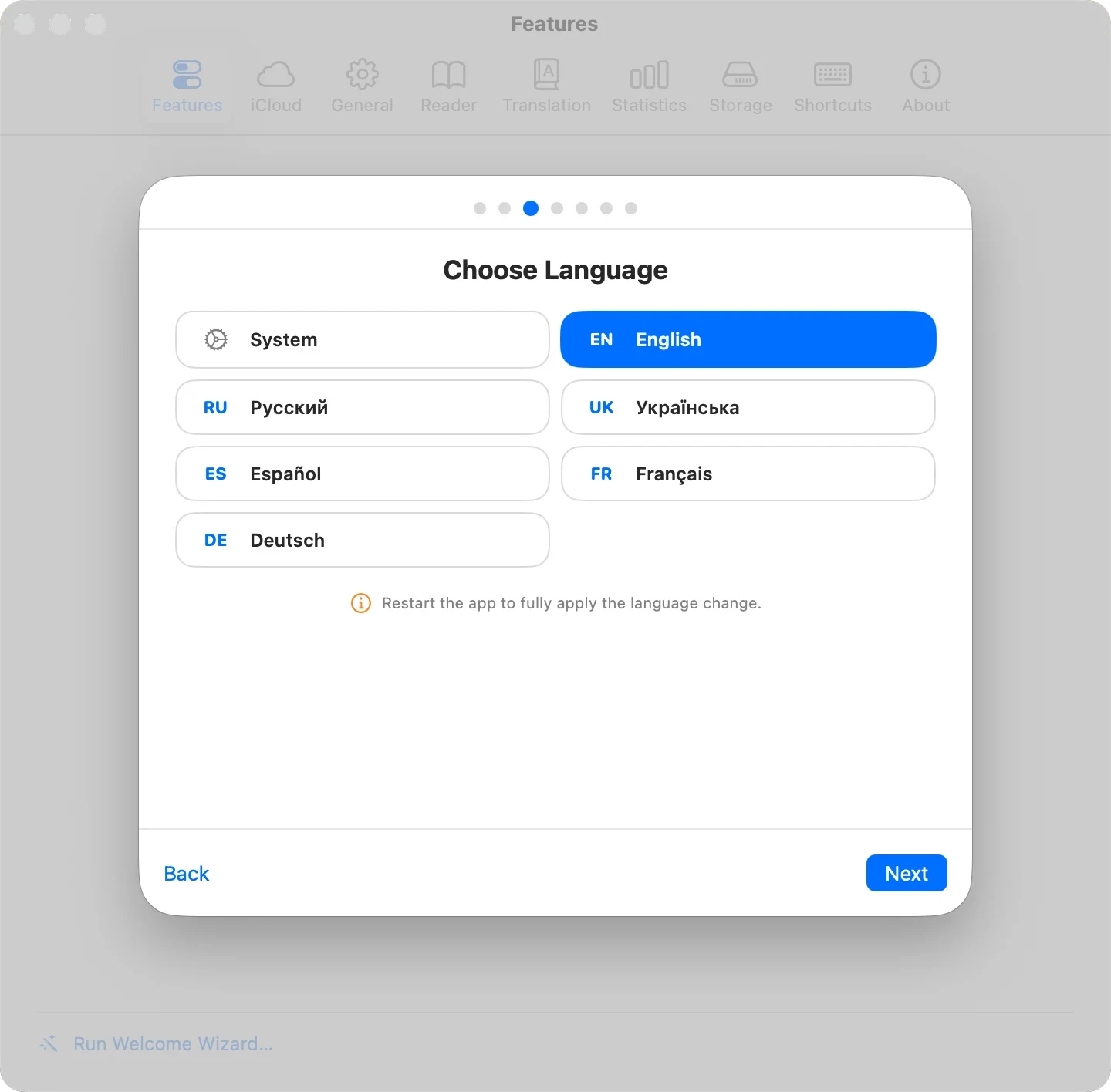
On first launch — the Welcome wizard.

Before you import your first book, a short setup walks you through the choices that matter — starting with where your library should live: in iCloud (synced across your devices), on this device only, or in a folder you pick (the books survive uninstall). Then language, interface theme, library view (list, cards, or table), and which features you want visible. Seven screens, all skippable, all changeable later. You start with an app that already looks the way you want and stores your books exactly where you want them.

Setup wizard — Choose Language step (System, English, Русский, Українська, and more)

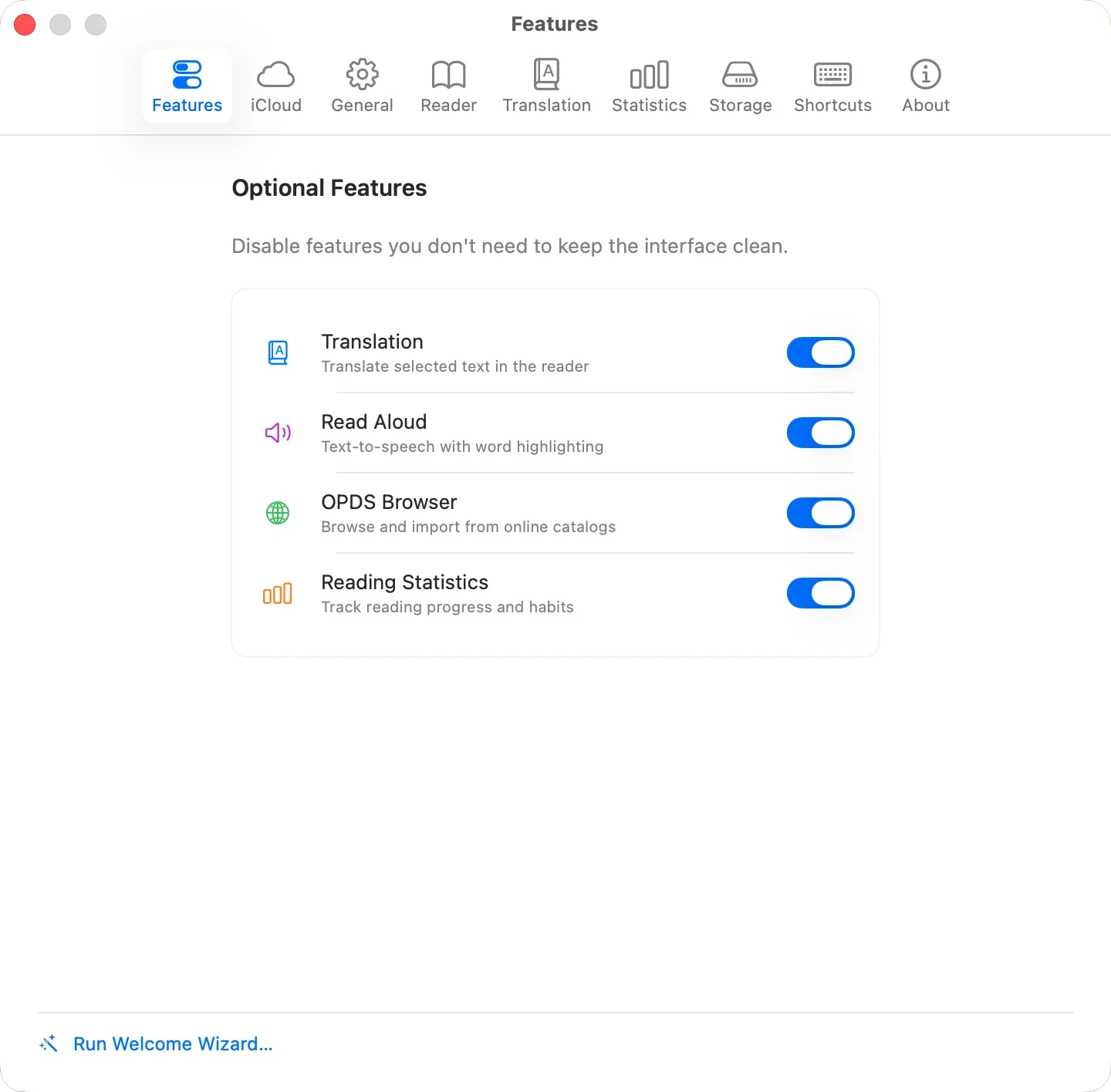
Any time after — the Features panel.

If you never use Read Aloud, turn it off and its button disappears from the bottom toolbar. Same for OPDS, Translation, and Statistics — all in Settings → Features. Switching one off removes it from the interface cleanly, with no dimmed buttons or leftover menu items hanging around for a feature you don’t use.

Settings — Features panel with toggle switches

Change your mind, relaunch the wizard from Settings. Your app, your preferences.

Start reading.

Two apps. Read a book, or grow a library.